



 google chrome
You can get Google Chrome for your Mac, PC, or iPhone.
Table of Contents
Using Google Chrome with the same Google account on multiple devices will sync your history and favorites.
Google Chrome should have already been downloaded to Android phones and Chromebooks.
Google Chrome is one of the most popular online browsers due to its speed, reliability, efficiency, and excellent security. And if you use Gmail, Chrome makes the shift from email to web browsing simple.
Quick tip: If you download Google Chrome, your bookmarks and browsing history will be synced across all of your devices. This implies that if you opened a recipe on your laptop but forgot to save it before heading to the grocery store, you can just open Chrome on your phone and it will appear in your history.
Unlike Chromebooks and Android phones, which run Google’s operating system and use Google Chrome as their default browser, most other devices do not include Chrome. As a result, you must manually download and install it.
Step 1: Download and install Google Chrome on your Mac. Go to google.com/chrome/.
2. Once there, click on the blue box labeled Download Chrome.
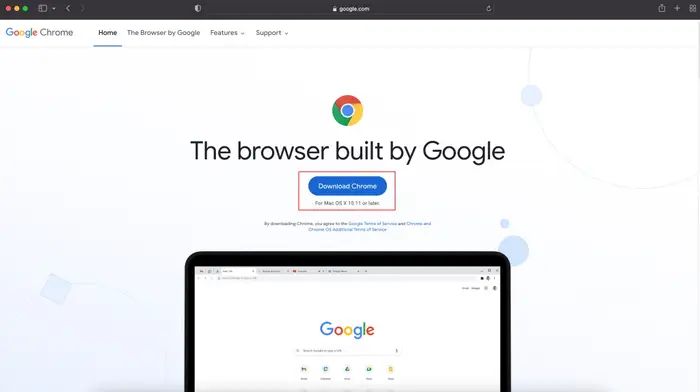
3. Chrome will begin downloading; all you have to do is wait for it to finish.
4. You will be sent to a page titled “Thank you for downloading Chrome!” If you have this option selected in your current browser, the Chrome file will download automatically. Otherwise, select “Download Chrome Manually.”
5. After downloading, double-click the.dmg file. A window will popup, displaying the Google Chrome icon above (or beside) an Applications folder; drag and drop the Chrome icon into the folder.
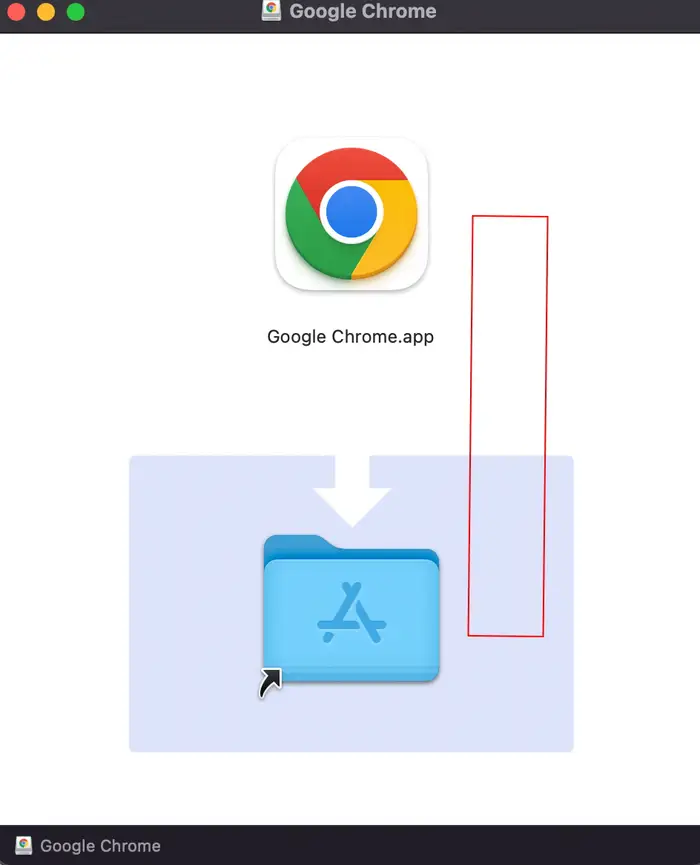
6. Go to the Applications folder and double-click Google Chrome.
7. You may be greeted with a popup stating, “‘Google Chrome’ is an application downloaded from the Internet. “Are you certain you want to open it?” Select Open.
8. After you click Open, Google Chrome should launch on its own. Sign in to your Google account to enable automatic synchronization across devices.
How to download and install Google Chrome on a PC running Windows 11.
1. Visit google.com/chrome/.
2. Once there, click on the blue box labeled Download Chrome.
3. Locate the.exe file you just downloaded and run it. When prompted if you wish to allow the file to make changes to your device, choose Yes.
4. Wait for Chrome to download and install. Once completed, a Chrome browser window should appear automatically. Sign in to your Google account to enable automatic synchronization across devices.
Quick tip: To make Chrome easier to launch on Windows 11, add it to the Taskbar. Right-click the Chrome icon on your desktop and choose Show more choices. Then, click the Pin to taskbar button.
How to Download and Install Google Chrome on iPhone?
iPhones do not come with Google Chrome pre-installed. Follow the instructions below to install it yourself.
1. Go to the App Store and install the Google Chrome application.
2. Tap on the rounded box labeled Get. If you’ve previously downloaded the app, this box will be replaced by a cloud icon with an arrow.
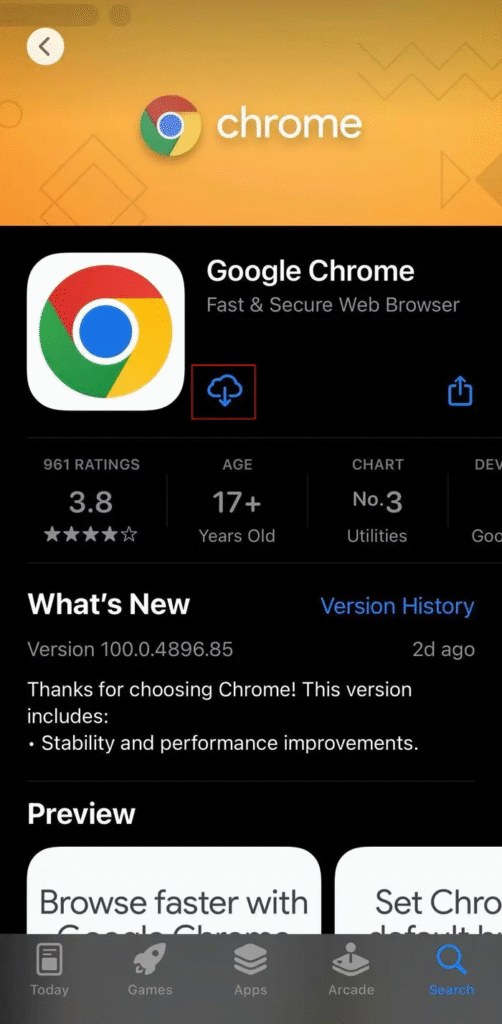
3. Because the software is free, it will most likely start downloading without prompting you to input your password. On some devices, you will need to enter a password or confirm your Touch ID.
4. Once the download is complete, the rounded button or cloud symbol will change into an Open button.
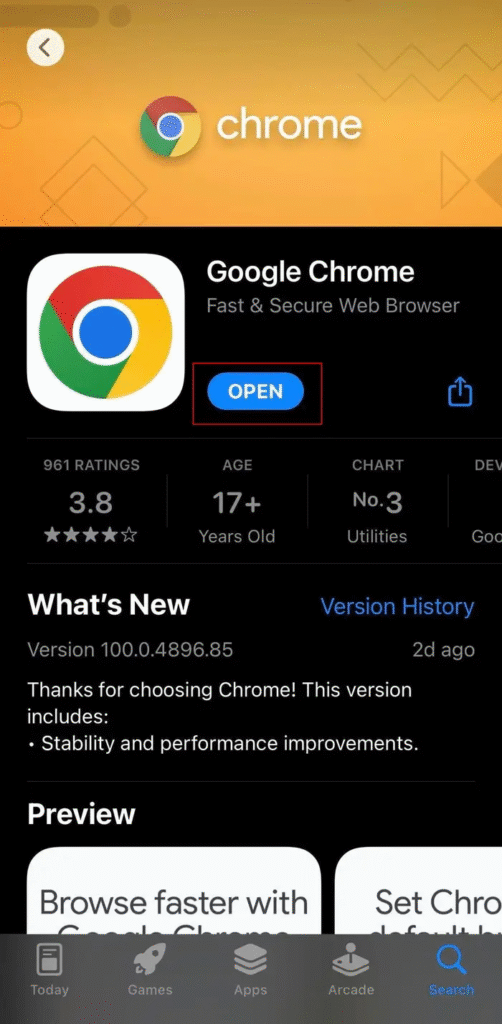
5. Tap Open to be sent to a site that says “Welcome to Chrome.”
6. Select Accept and Continue.
7. If you already have a Google account, log in here. You will then be led to a page that explains Google Chrome’s sync and personalization features. Tap Okay, Got It.
How to make Chrome your default browser.
If you enjoy using Chrome, you can easily make it your default browser on Windows and Mac.
This allows you to open any link right into Chrome, among other things, and take advantage of the browser’s powerful browsing capabilities.




No Comments